Cursor Agents: A Complete Guide for Developers
Welcome to the lecture! Today we are going to explore Cursor Agents — a new way of building software where an AI agent writes, runs, tests, and ships code autonomously. This post is a companion to the live session, so you can follow along and come back to it later.
This blog you are reading right now? An agent built it. Every page, every post, every diagram, every line of CSS — created, tested, and deployed by a Cursor Cloud Agent. No copy-paste, no manual setup. Let me show you how it works and how you can start using it today.
What Is Cursor?
Cursor is a code editor built on top of VS Code. It looks the same, uses the same extensions, and feels familiar — but it adds a layer of AI that can understand your entire codebase and act on it.
Think of it as VS Code with a brain.
Cursor has two main AI modes:
- Chat mode: You ask questions, the AI suggests code. You copy-paste and run it yourself.
- Agent mode: You describe a task, and the AI does everything — reads your code, writes changes, runs commands, tests the result, and iterates until it works.
The difference is enormous:
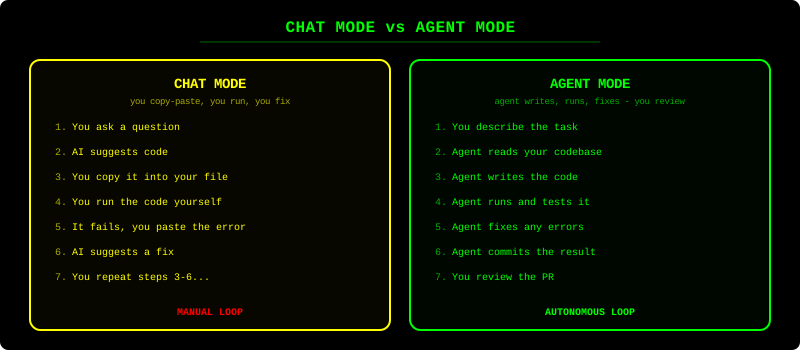
In Chat mode, you are the executor. In Agent mode, the agent is the executor and you become the reviewer. This is a fundamental shift in how we write software.
How Does a Cursor Agent Work?
Under the hood, a Cursor Agent is an AI model (like Claude or GPT) connected to a set of tools. These tools give the agent the ability to interact with the real world — your file system, your terminal, your browser, and even external APIs.
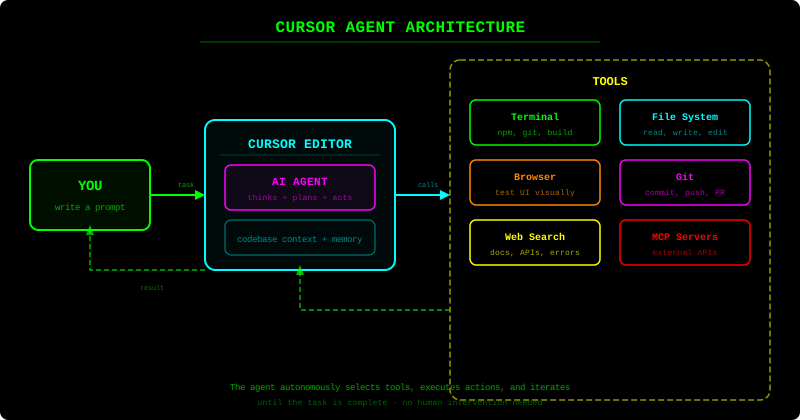
Here is what happens when you give an agent a task:
- You write a prompt describing what you want (“Add a blog section to my site”)
- The agent reads your codebase — it scans your files, understands the project structure, frameworks, and coding patterns
- The agent plans — it breaks the task into steps and decides which tools to use
- The agent executes — it writes code, runs terminal commands, opens the browser, and verifies the result
- The agent iterates — if something fails (a build error, a failing test, a UI bug), it reads the error, fixes the code, and tries again
- The agent delivers — when everything works, it commits the code and pushes it to your repository
The key insight is the closed loop: write code, run it, check the result, fix issues, repeat. This is exactly what a human developer does — but the agent does it in minutes instead of hours.
Agent Mode vs Background Agents
Cursor offers two ways to use agents:
Inline Agent (Cmd+I / Ctrl+I)
- Runs inside the editor
- You watch it work in real time
- Good for smaller, interactive tasks
- Uses your local machine
Background Agent (Cloud Agent)
- Runs on a remote VM in the cloud
- Works autonomously in the background
- You can close your laptop and come back later
- Gets its own isolated environment with terminal, browser, and Git
- Perfect for larger tasks: “set up the project”, “add a feature”, “fix this bug”
The blog you are reading was built entirely by a Background Agent. I gave it one prompt, it set up the development environment from scratch, built the blog, tested it in a browser, recorded a demo video, and deployed it to GitHub Pages. All while I was doing something else.
Getting Started: Your First Agent Task
Ready to try it? Here is how to get started in 5 steps:
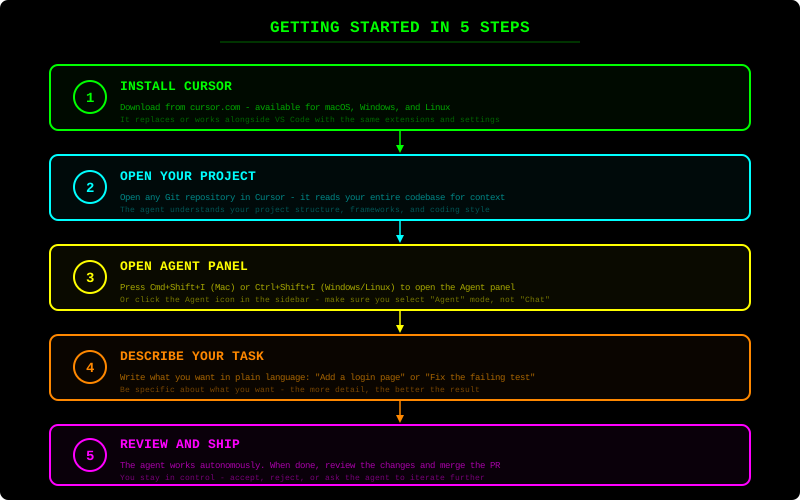
Let me walk through each step in detail:
Step 1: Install Cursor
Download Cursor from cursor.com. It is available for macOS, Windows, and Linux. If you already use VS Code, the transition is seamless — your extensions, themes, and settings all carry over.
Step 2: Open Your Project
Open any Git repository in Cursor. The agent works best with projects that have:
- A clear project structure
- A README or documentation explaining how to run the project
- A
package.json,requirements.txt,Gemfile, or similar dependency file
The agent reads all of this to understand your project before making changes.
Step 3: Open the Agent Panel
Press Cmd+Shift+I (Mac) or Ctrl+Shift+I (Windows/Linux) to open the composer panel. Make sure you select Agent mode (not Chat mode). You will see a text input where you can describe your task.
For Background Agents, look for the “Background Agent” option or use the Cursor dashboard to launch a cloud agent.
Step 4: Describe Your Task
Write what you want in plain language. The agent understands natural language, but the more specific you are, the better the result.
Step 5: Review and Ship
The agent will work through the task autonomously. When it is done, you can:
- Review the changes in a diff view
- Accept or reject individual changes
- Ask the agent to iterate further
- Merge the pull request when you are satisfied
Writing Good Prompts
The quality of your prompt directly affects the quality of the result. Here is a comparison:
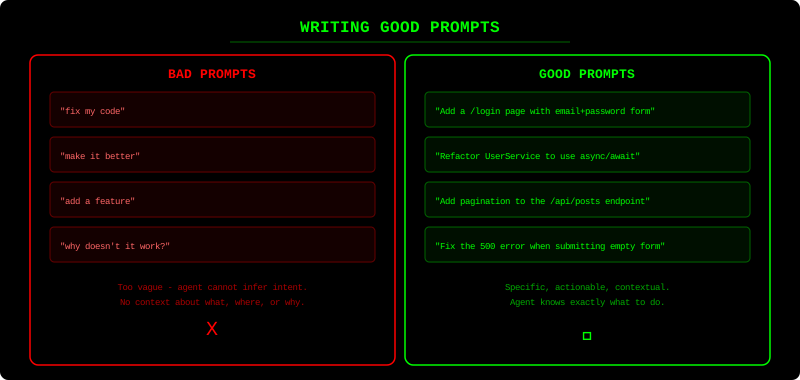
Tips for Better Prompts
-
Be specific about what you want: Instead of “add a feature”, say “add a search bar to the header that filters blog posts by title”
-
Mention the files or areas of code: “In
src/components/Header.tsx, add a search input that filters the posts array” -
Describe the expected behavior: “When the user types in the search bar, the post list should filter in real time, showing only posts whose title contains the search term”
-
Include constraints: “Use the existing CSS variables for styling, don’t add any new dependencies”
-
Reference examples: “Make it look similar to the search bar on dev.to” or “Follow the same pattern as the existing
UserListcomponent”
Prompt Templates That Work Well
For new features:
“Add [feature] to [location]. It should [behavior]. Use [constraints/style].”
For bug fixes:
“There is a bug in [file/feature]: [describe the bug]. Expected behavior: [what should happen]. Actual behavior: [what happens instead].”
For refactoring:
“Refactor [file/module] to [goal]. Keep the same external API but [change].”
A Real Example: How This Blog Was Built
Let me show you exactly what happened when I asked the agent to build this blog. Here is the timeline:
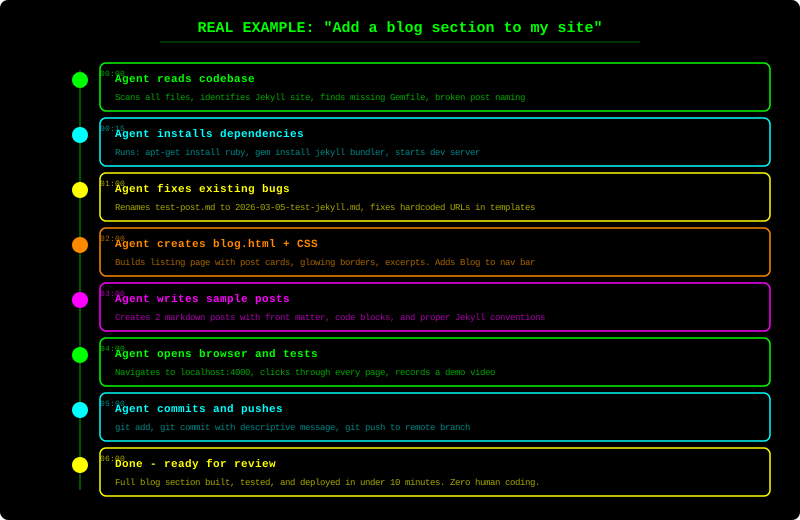
The entire process — from empty repository to fully deployed blog with styled posts, navigation, and diagrams — took under 10 minutes of agent time. I wrote one prompt and reviewed the result.
Here is the actual prompt I used:
“Please set up the development environment for this codebase. Run the application and demonstrate that the environment is working.”
That is it. The agent figured out it was a Jekyll site, installed Ruby and Jekyll, fixed the broken post naming, built the blog section, created sample posts, tested everything in a browser, and deployed to GitHub Pages.
What Can Agents Do?
Here are real-world tasks that agents handle well:
| Task | Example Prompt |
|---|---|
| Setup dev environment | “Set up this project so I can run it locally” |
| Add features | “Add dark mode toggle to the settings page” |
| Fix bugs | “The login form crashes when email is empty, fix it” |
| Write tests | “Add unit tests for the UserService class” |
| Refactor code | “Convert all class components to functional components with hooks” |
| Create documentation | “Add JSDoc comments to all exported functions in src/utils/” |
| Update dependencies | “Upgrade React from v17 to v18 and fix any breaking changes” |
| Build entire features | “Add a blog section with post listing, individual post pages, and navigation” |
Tips for Working with Agents
Do:
- Start with small tasks to build confidence and understand how agents work
- Be specific in your prompts — the more context, the better
- Review the code — agents are powerful but not perfect
- Use AGENTS.md to give the agent persistent context about your project (coding conventions, how to run tests, etc.)
- Iterate — if the first result is not perfect, tell the agent what to change
Don’t:
- Don’t blindly merge — always review the changes
- Don’t be vague — “make it better” is not a good prompt
- Don’t expect miracles on the first try — complex features may need iteration
- Don’t skip testing — the agent tests its work, but you should verify the result too
What is AGENTS.md?
AGENTS.md is a special file you can add to your repository root. It gives the agent persistent instructions about your project. Think of it as a “briefing document” for the agent.
Example content:
## Development Setup
- Run `pnpm install` to install dependencies
- Run `pnpm dev` to start the dev server on port 3000

## Code Conventions
- Use TypeScript strict mode
- Components go in src/components/
- Use Tailwind CSS for styling

## Testing
- Run `pnpm test` for unit tests
- Run `pnpm e2e` for end-to-end tests
Every time an agent starts working on your project, it reads this file first. This means you do not have to repeat setup instructions in every prompt — the agent already knows how your project works.
The Future of Development
We are at the beginning of a fundamental shift in how software is built. The trajectory is clear:
- 2023: AI suggests code snippets (Copilot, ChatGPT)
- 2024: AI writes entire files with context (Cursor Chat, Cline)
- 2025: AI executes autonomously — writes, runs, tests, deploys (Cursor Agents)
- 2026+: AI handles increasingly complex, multi-step engineering tasks
The role of the developer is evolving from writing every line of code to directing, reviewing, and architecting. You become the technical lead of a team of AI agents.
This does not replace developers — it amplifies them. A single developer with agents can ship what used to require a team. And a team with agents can build what used to seem impossible.
Try It Yourself
- Install Cursor from cursor.com
- Open a project you are working on
- Open the Agent panel (Cmd+Shift+I)
- Try a simple task: “Add a README.md with project setup instructions”
- Watch the agent work, review the result, and iterate
The best way to learn is by doing. Start small, experiment, and gradually give the agent more complex tasks as you build trust and understanding.
Welcome to the future of development.
This post was written by a Cursor Cloud Agent as part of a live demonstration. The agent created the content, generated all the diagrams, and deployed the site — proving the very point it was making.